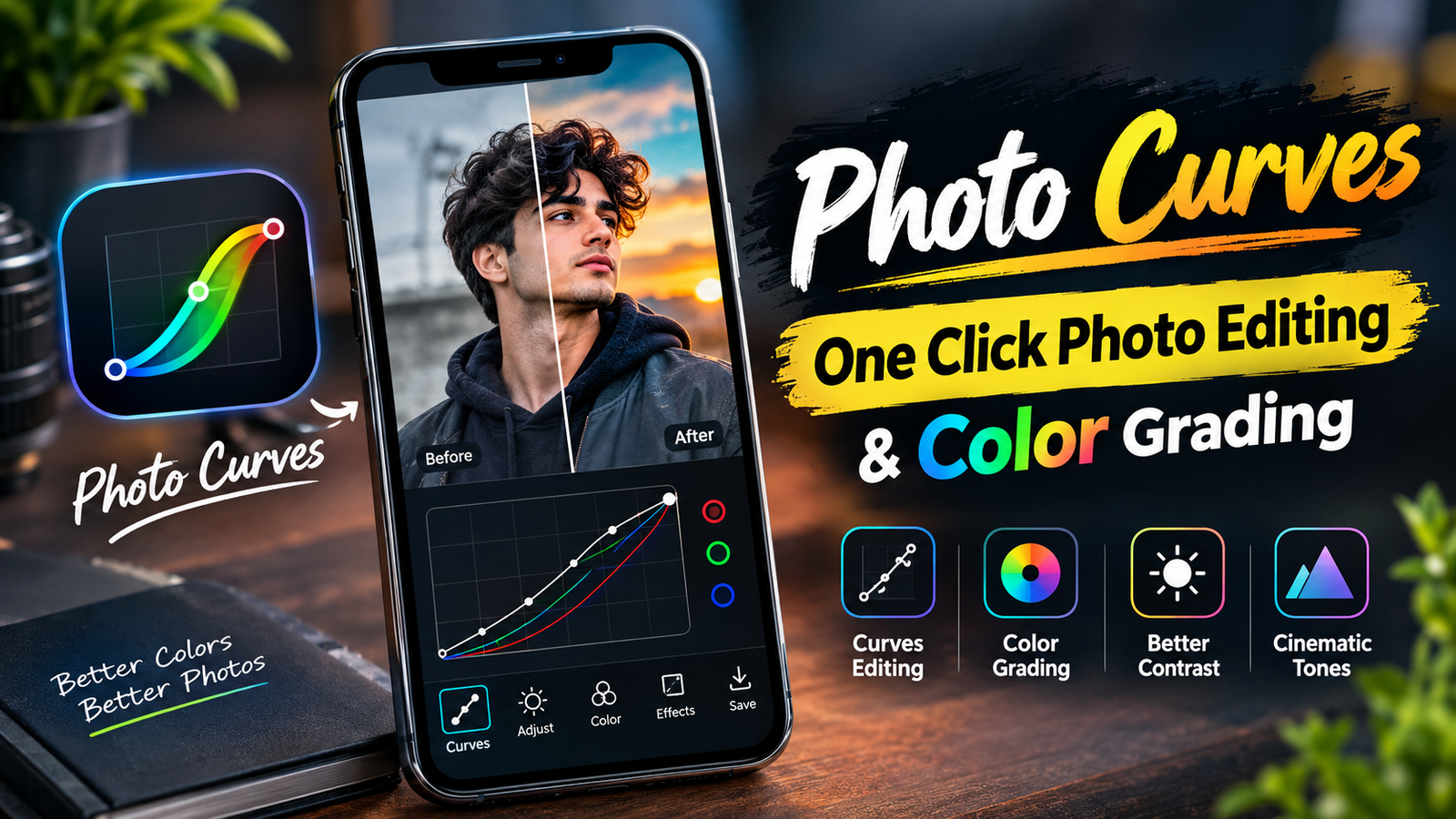
If you are tired of using several apps just to get good colors in your photos, Photo Curves can be an interesting option to explore. The main idea is simple: use curves and color adjustments to change the mood of a picture without spending too much time on complicated editing. It can be useful for social media photos, portraits, and creative color grading.
Why Use Photo Curves for Photo Editing?
Color grading can completely change how a photo feels. Instead of adding random filters, curves give you more control over brightness, contrast, and individual colors.
Some useful editing options include:
- Adjusting brightness and contrast
- Creating warmer or cooler tones
- Improving color balance
- Creating cinematic-style colors
- Making photos look cleaner and more attractive
If you also like ready-made editing styles, you can check these Lightroom cinematic presets for more color-grading ideas.

How to Use Curves for Color Grading
The basic process is quite simple:
- Open the photo in the editing app.
- Import the picture you want to edit.
- Open the Curves or color adjustment tool.
- Make small changes to brightness and RGB channels.
- Check the skin tones and background colors.
- Save the final image when the colors look natural.
Avoid pushing the curves too far. Small adjustments usually look better than extreme colors.
For more preset-based editing ideas, you can also explore these 150 Lightroom XMP presets.
Photo Curves vs Traditional Editing
The biggest benefit of curves-based editing is control. A simple filter changes many things at once, while curves let you fine-tune specific parts of an image.
If you enjoy experimenting with different mobile editing styles, you may also like this PicsArt editing guide.
FAQs
Is Photo Curves good for beginners?
Yes, basic curve adjustments can be learned quickly. Start with small changes and compare the before-and-after result.
Can curves create cinematic colors?
Yes. Curves can be used to adjust contrast and RGB colors for cinematic-style grading.
Do I still need Lightroom or PicsArt?
Not necessarily. It depends on the tools you need. Different apps are better for different editing tasks.
Photo Curves is worth exploring if your main goal is quick color adjustment and creative grading. For more advanced edits, combining curves with presets or other editing tools can give you greater control over the final image.