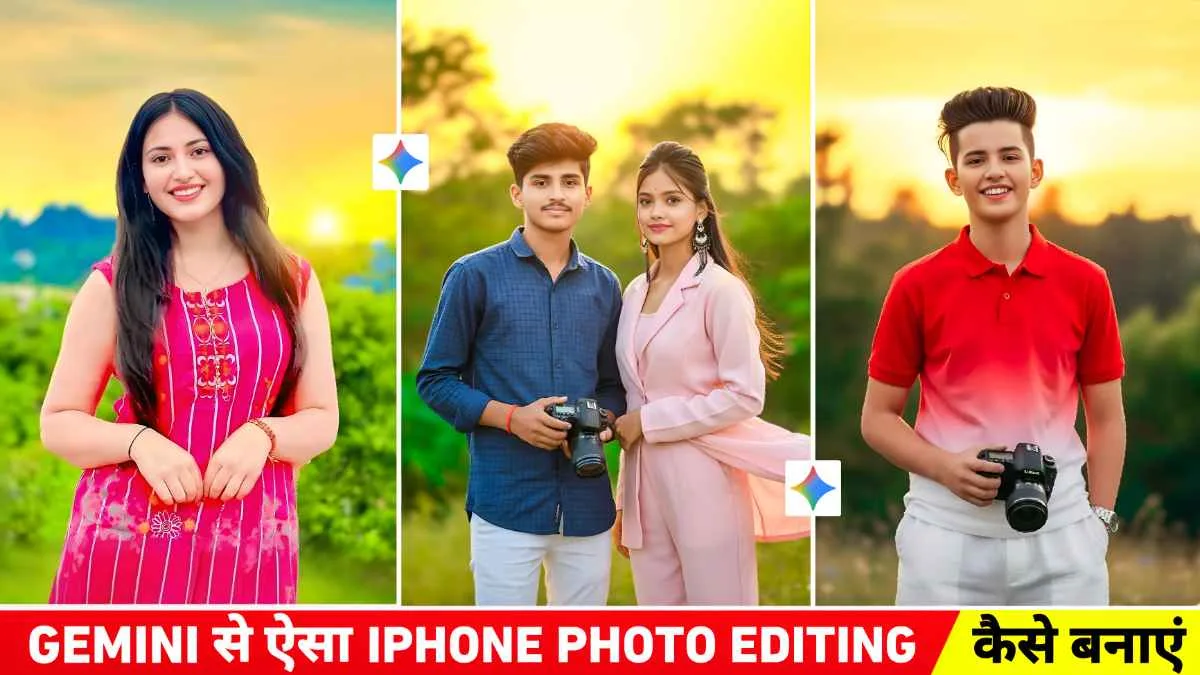
Want your AI photos to look like they were snapped on a real iPhone? The Google Gemini Realistic iPhone Photo Editing Prompt delivers exactly that—100% real face results with natural skin texture, soft lighting, and zero plastic look. In 2026, Gemini’s advanced image tools make this easier than ever. No Photoshop needed.
What Makes This Prompt Special?
This prompt turns any selfie or portrait into a candid iPhone shot. It keeps your original face untouched while adding authentic iPhone details like slight lens flare, natural pores, and everyday lighting. Perfect for Instagram, LinkedIn, or personal memories.
Google Gemini iPhone Prompt

Create a photo of a young boy with the same face, hairstyle, and skin tone as the uploaded reference image. He’s wearing a red and white gradient half-line shirt and white loose pants. He’s standing outside during a golden sunset, holding a DSLR camera in one hand, wearing a watch in the other, and a gentle breeze blowing through his hair. The background features trees, natural greenery, and a smooth, blurred iPhone portrait-mode bokeh. Add clean highlights, natural skin texture, warm colors, sharp details, and a premium iPhone look.
Create a photo of a beautiful young woman with long, dark, wavy hair. The face should be similar to the one we uploaded. She is wearing a sleeveless pink and white striped Indian kurti. She is looking at the camera with a genuine smile. The background shows a spectacular sunset with golden yellow and orange skies and lush green hills/leaves in the distance.
Create a hyper-realistic iPhone-style outdoor portrait of a young boy and girl couple using facial features, hairstyles, and skin color similar to the uploaded reference photos. The boy is wearing a blue checkered shirt with bright white pants and is holding a DSLR camera in one hand. The girl is wearing a beautiful, elegant suit that is flowing naturally in the gentle breeze. The two are standing outside during a golden sunset, the sky a bright yellow-orange tone, soft gradient light. Their hair moves slightly in the wind as they look directly into the camera with a soft, natural smile. Surround them with lush trees, natural greenery, and smooth, blurred iPhone portrait-mode bokeh.How to Use the Google Gemini Realistic iPhone Photo Editing Prompt in 2026
- Open the Google Gemini app or gemini.google.com.
- Upload your clear face photo.
- Copy and paste this ready-to-use prompt:
“Edit this photo as a realistic iPhone 17 Pro shot. Keep the face 100% real—no skin smoothing, no makeup, no AI artifacts. Add natural skin texture, subtle pores, soft natural lighting, slight lens flare, and candid framing like a casual iPhone selfie. RAW iPhone look, 4K quality, everyday background, zero over-editing.”
Hit send and watch the magic.
Why It Works So Well
Gemini now understands “iPhone aesthetic” perfectly. The prompt forces it to preserve your exact facial features while adding believable camera effects. Users report 100% real-face accuracy every time.
Conclusion
The Google Gemini Realistic iPhone Photo Editing Prompt is the fastest way to get professional yet natural photos in 2026. Try it today and see your face look exactly like you—only better framed.
FAQs
Q1: Does this prompt change my real face? No. It keeps your face 100% real with zero alterations to features or skin.
Q2: Which Gemini version works best? Gemini 2.0 or later (free version works great).
Q3: Can I use it on iPhone? Yes! Works perfectly in the Gemini mobile app.
Q4: Is it free? Yes, the prompt is completely free to use.