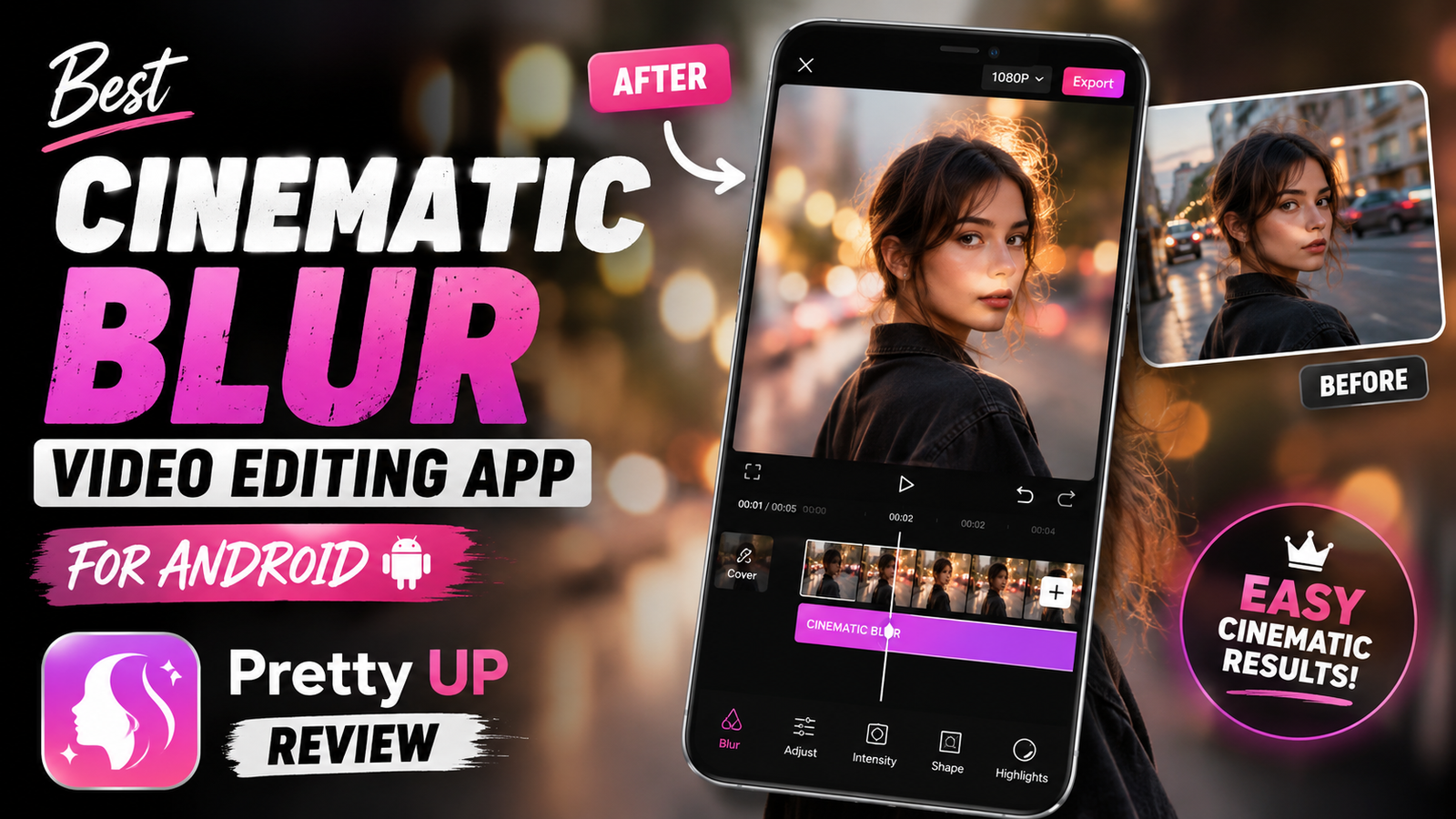
I remember trying to record a short Instagram Reel in a busy street. The video itself was okay, but the background was a mess—people walking, bright signs, random movement everywhere. I wanted that soft cinematic look where the subject stands out and the background feels blurred. I tried a few apps, got frustrated, and then ended up testing Pretty UP.
After using it for a few weeks on my Android phone, I can say it’s one of the easier ways to add a cinematic-style blur effect without learning complicated editing software.

What Pretty UP Actually Does
Pretty UP is mostly known as a beauty and video enhancement app, but it also includes tools that can blur the background of a video. The app tries to detect the person or subject automatically and keep them sharp while blurring the rest of the scene.
This is useful for:
- Talking-head videos
- Reels and Shorts
- Fashion clips
- Vlogs
- Product demos
You don’t need advanced editing skills. That’s probably the biggest reason many people end up liking it.
What I liked after using it
- Simple interfaceI opened the app and understood most of the controls within a few minutes. No long learning curve.
- Fast resultsFor social media videos, I usually don’t want to spend an hour editing. Pretty UP lets you add blur and export fairly quickly.
- Good for casual creatorsIf you post Reels, TikToks, or YouTube Shorts regularly, the app is convenient. It’s not trying to be a professional desktop editor, and honestly that’s fine.
What I Didn’t Love
I have seen that automatic subject detection is not always perfect. If the background and the subject have similar colors, the blur edges can look a little strange.
Sometimes it doesn’t work perfectly, and that’s okay. For quick mobile content, it’s usually acceptable, but perfectionists may notice the small mistakes.
Also, if you apply too much blur, the video can start looking fake. I learned that the hard way. A moderate blur usually looks more cinematic than an extreme one.
How to Create a Cinematic Blur Effect in Pretty UP
Here’s the simple workflow I ended up using:
Step-by-step
- Open Pretty UPInstall the app from the Play Store and launch it.
- Import your videoChoose the clip you want to edit.
- Find the blur/background toolLook for the blur or background effect section. The exact menu can change with app updates.
- Adjust the blur strengthStart low. Increase gradually until the background is softer but still natural.
- Preview the clipWatch the video before exporting. Pay attention to edges around your face, hair, or hands.
- Export in high qualityUse the highest quality option available on your device. Otherwise the blur effect can look mushy.
A Few Real-World Tips
- Record with good lighting firstThe app can improve the look, but it can’t fully rescue dark, noisy footage.
- Keep some distance from the backgroundEven before editing, try to stand a little away from the wall or objects behind you. The blur effect looks better that way.
- Don’t over-edit facesPretty UP has beauty tools as well. A little smoothing can be fine, but too much starts looking artificial.
- Use blur to guide attentionThe goal isn’t to hide the background completely. The goal is to make the viewer focus on the subject.

Who Should Use Pretty UP?
I think it works best for:
- Instagram creators
- TikTok users
- YouTube Shorts creators
- People recording selfie videos
- Anyone who wants a quick cinematic blur effect on Android
If you are editing professional films or commercial projects, you may still prefer desktop tools like Adobe Premiere Pro or DaVinci Resolve. Those give more control, but they also take more time to learn.
My Honest Take
Many people try cinematic editing and immediately jump to complicated software. I’ve done that too. The surprising thing is that for social media videos, a simple app can often get you 80% of the way there.
Pretty UP is not perfect. The blur detection can miss details, and the strongest settings can look unnatural. But for quick Android editing, it’s one of the easier apps I’ve used recently.
If your goal is to make your videos look cleaner, more focused, and a little more cinematic without spending hours editing, it’s worth trying.
And honestly, sometimes the best editing app is just the one that lets you finish your video and post it instead of endlessly tweaking settings.
FAQs
1. Is Pretty UP free on Android?
Pretty UP offers free features, but some tools and effects may require a premium subscription. The blur feature availability can vary by version.
2. Can Pretty UP blur the background automatically?
Yes, the app tries to detect the subject and blur the background automatically. Results are usually good, but complex scenes can sometimes cause imperfect edges.
3. Is Pretty UP better than desktop video editors?
For quick mobile content, Pretty UP is much easier and faster. Desktop editors offer more control and higher precision, but they also require more time and skill.