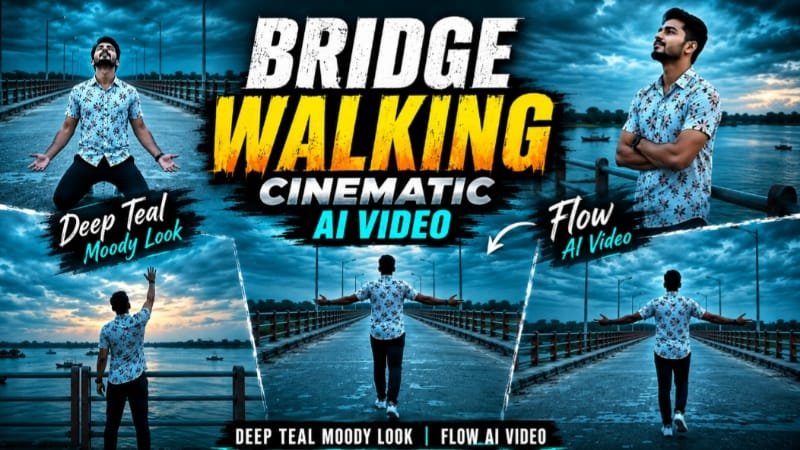
Nowadays, cinematic AI videos are becoming popular on Instagram Reels and TikTok. One beautiful style is the Bridge Walking Cinematic AI Video, which features a person walking across a bridge with dramatic lighting, a deep teal color grade, and a moody cinematic atmosphere.
If you want to create a professional-looking video without recording it yourself, you can try Google Flow. With a detailed AI video prompt, you can describe the character, bridge, camera movements, lighting, and overall mood to create your own cinematic scene.
Bridge Walking Cinematic AI Video Prompt
To create this trending visual style, copy the prompt below and use it in Flow AI. For better character consistency, upload a reference photo if your chosen workflow supports image references.
[COPY THIS PROMPT]
Use the uploaded reference photo for the man's face, hairstyle, skin tone, body build and height, keeping his identity exactly the same in every scene with no alteration to his face, body or hairstyle, and keeping his proportions natural and true to the reference, with no added muscle, height or bulk, so that his own body type shows naturally in his movement. He wears the same outfit throughout (a white floral-printed short-sleeve shirt, dark navy pants and white sneakers) in all 7 cinematic scenes, set on one unchanging location: a long concrete bridge over a wide river, with teal-and-orange striped metal railings on both sides, a distant green tree line, small islands and boats on the water, and a dramatic overcast dusk sky in evening light rather than nighttime. A moody, deep-teal cinematic color grade covers the whole sky and water and stays consistent from start to finish. The sequence runs as follows: Scene 1 is a wide shot from behind of him walking away down the center of the bridge at a steady pace with both arms spread wide in a carefree gesture, a small figure against the vast teal sky and water; Scene 2 is a medium shot of him at the railing with arms crossed over his chest, looking up at the sky with a calm, reflective expression, the water and distant shoreline behind him; Scene 3 is a wide shot of him walking calmly and steadily along the bridge at a distance, with the teal-orange railing, the water and boats stretching beside him; Scene 4 is a front-facing wide shot of him dropping down to kneel in the middle of the bridge, head tilted upward in a dramatic, emotional pose, with the empty road stretching behind him; Scene 5 is a side-profile wide shot of him walking past the camera along the railing in calm, steady motion, with the water and horizon behind; Scene 6 is a back-view wide shot of him walking away down the bridge with a natural stride, under a dramatic wide teal sky and between street lamps lining the path; and Scene 7 is a wide shot of him at the railing raising one arm toward the sky as if reaching for it, a dramatic emotional finishing pose, with the water and distant land behind him. The video is 9:16 vertical at 1080p, with cinematic pacing and smooth camera movement throughout, the same location and deep-teal grade maintained from Scene 1 to Scene 7, and a small, semi-transparent "ASIM EDITOR 46" watermark visible in the bottom-right corner of every scene.
How to Create a Bridge Walking Video in Flow AI
Follow these simple steps to generate your cinematic video.
- Open Google Flow: Visit the official Flow website and start a new project.
- Choose Video Generation: Select an available video-generation model.
- Paste the Prompt: Copy the complete bridge-walking prompt and enter it into the prompt box.
- Set the Style: Choose a vertical 9:16 format if available for Reels and TikTok.
- Generate the Video: Start generation and review the result.
- Improve the Output: If the face, clothing, or camera movement changes unexpectedly, refine the prompt and generate another version.
- Save and Share: Export the finished clip when the option is available and share it on your social media accounts.
You can explore the official Google Flow website to access its available video creation features.
Tips for a Cinematic Teal Look
Use words such as “deep teal color grading,” “moody atmosphere,” “soft cinematic lighting,” and “natural skin tones” to guide the visual style. Avoid making the entire image too dark, because the character and bridge should remain clearly visible.
Final Words
The Bridge Walking Cinematic AI Video is a great idea for creators who enjoy moody visuals and professional-looking Reels. Try this Flow AI prompt, experiment with different bridges and outfits, and create your own cinematic walking video.